How to Set Up Shopify Pre-Orders and Deposits When Stock Runs Low
How to forecast a Shopify stockout, set a safe pre-order limit, choose full payment or a deposit, and tell customers when their order ships.
Last updated: November 2026
Guest article by Yauheni Kaziak, co-founder of K1 Apps, which makes K1 PreOrder Now & Deposit. Forthcast is our own inventory forecasting app.
Running out of stock is usually treated as a binary event: the product is available, and then it is not. In practice, merchants often see the shortage coming. Sales velocity rises, available inventory falls, and the next purchase order is still days or weeks away.
That gap creates a choice. You can hide the product and stop collecting orders, or you can activate a controlled pre-order rule that keeps demand moving without promising more than the business can deliver.
The key word is controlled. A pre-order rule should not be an unlimited “continue selling” switch. It should connect your inventory forecast to a defined quantity, a payment model, a realistic delivery window, and a process for monitoring changes.
This guide explains how to build that workflow on Shopify.
Use Forthcast to review demand and draft purchase orders, then confirm supplier quantities and arrival dates before setting your pre-order limit.
1. Forecast the Stockout Window
Start by estimating when sellable inventory will reach zero and when replenishment will actually become available.
A simple first estimate is:
Estimated days until stockout = current sellable inventory ÷ average daily unit sales
Suppose a product has 80 units available and sells 10 units per day. At the current rate, it will run out in about eight days. If replenishment is expected in 18 days, the store faces an estimated 10-day stockout window.
You can then estimate uncovered demand:
Expected uncovered demand = average daily unit sales × stockout window
In this example, demand during the gap could be roughly 100 units. That does not automatically mean the store should accept 100 pre-orders. Forecast demand and safe-to-promise supply are different numbers.
Before opening pre-orders, review:
- current sellable inventory by variant;
- recent sales velocity and seasonality;
- confirmed incoming quantity;
- supplier or production lead time;
- confidence in the expected arrival date;
- existing wholesale, retail, or replacement commitments;
- the store’s ability to handle delays, cancellations, and refunds.
If the replenishment quantity and date are confirmed, a limited pre-order rule may be appropriate. If quantity is uncertain, use a conservative limit. If both the quantity and date are unreliable, a waitlist or back-in-stock notification is safer than taking payment.
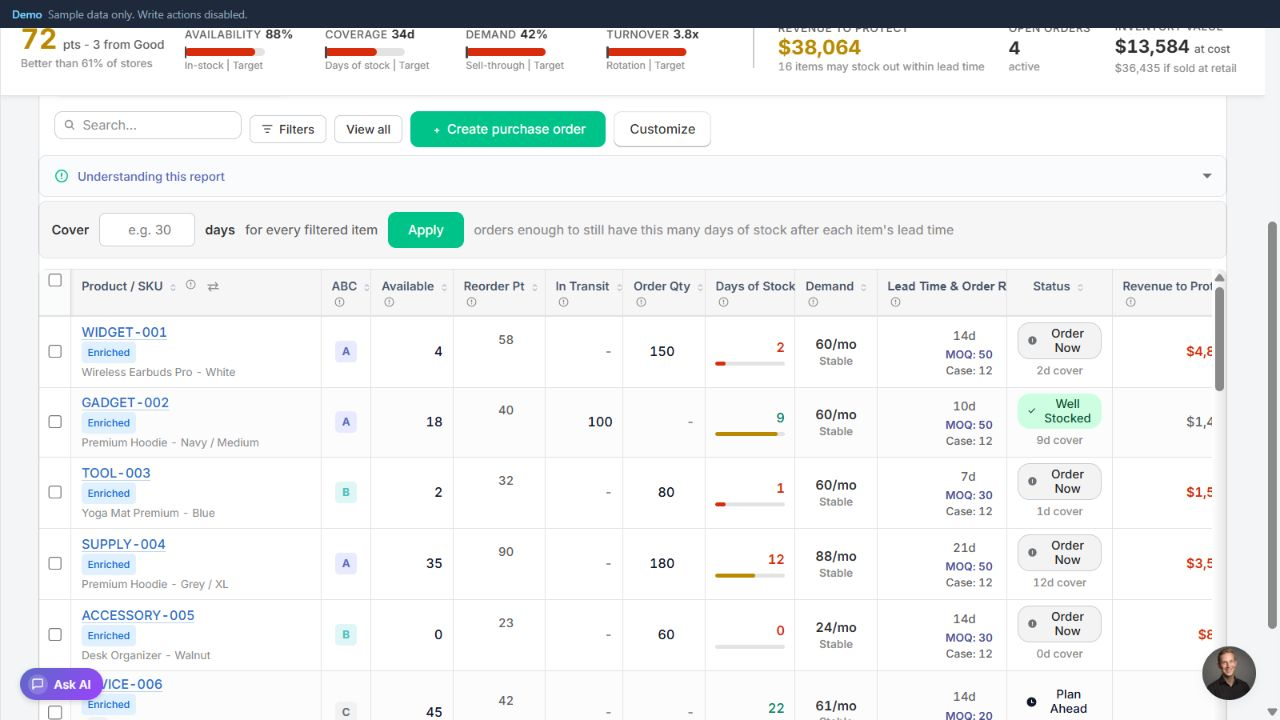
Forthcast reorder table, showing available stock, reorder points, in-transit quantities, days of stock, demand and lead time by SKU (demo data).
The screenshot uses separate sample data and does not depict the 80-unit example above. The table shows days of stock, not a stockout date. Forecasts and reorder points are store-wide; the location filter changes the stock shown.
2. Decide Which Products and Variants Should Be Pre-Ordered
Avoid applying the same rule to an entire catalog simply because one product is running low. Configure the rule at the narrowest practical level.
For example, one color or size may have confirmed incoming inventory while another variant has no reliable restock date. Accepting pre-orders for both creates unnecessary fulfillment risk.
K1 PreOrder Now & Deposit can target individual products, collections, or selected variants. Each rule controls when the pre-order experience appears, how inventory is handled, which payment options are available, and whether a quantity limit applies.
Before activation:
- Select only products covered by the replenishment plan.
- Exclude variants with uncertain supply.
- Check whether another rule already controls the same variants.
- Decide whether the rule needs a scheduled start or end date.
- Preview the storefront experience for each targeted product type.
If you use a collection-based rule, remember that new products added to the collection may also become part of the rule. Treat collection membership as an operational control, not just a merchandising choice.
3. Choose When the Pre-Order Experience Appears
The right activation condition depends on how early you want to transition customers from regular purchasing to pre-ordering.
| Display condition | Best use case | What it means |
|---|---|---|
| Always | Launches, limited drops, and made-to-order products | Covered quantities are presented as pre-orders while the rule is active |
| When out of stock | Standard replenishment gaps | Regular sales continue until sellable inventory is exhausted |
| Below an inventory threshold | Planned transition before zero | The store can communicate the upcoming delay before the last units sell |
For a predictable replenishment gap, “when out of stock” is the simplest approach. Customers buy available units normally, and the product switches to pre-order after regular inventory is gone.
A threshold-based transition can be useful when fulfillment timing changes before inventory reaches zero. For example, you may want the final 20 units to carry pre-order messaging because new orders will not ship in the normal window.
Storefront visibility and Shopify’s inventory policy are separate decisions. A product can remain assigned to a pre-order rule while the customer-facing presentation changes with stock state. Decide whether your pre-order setup should manage continued selling or whether the store team will keep inventory policy under manual control.
4. Set a Safe Pre-Order Quantity Limit
The pre-order limit should reflect supply you can reasonably commit, not the maximum demand you hope to capture.
For a replenishment gap with no usable stock remaining, a practical formula is:
Additional pre-order capacity = confirmed incoming quantity - existing commitments - safety buffer
For this walkthrough, imagine that 60 units are confirmed for the next shipment and no existing orders or other channel allocations need to be deducted. The merchant reserves 10 units as a buffer for damage, replacements, or inventory discrepancies, leaving capacity for 50 new pre-order units. All quantities in this walkthrough are illustrative.
The safety buffer matters because forecasts and purchase orders are not perfect. Suppliers may ship fewer units than planned, some units may fail quality control, or inventory may need to cover replacements and exchanges.
For this single-variant walkthrough, the merchant sets a pre-order limit of 50 units after confirming that the applicable counter starts at zero. If earlier orders are already recorded, reconcile the configured limit, recorded quantity, and remaining capacity instead of entering 50 without checking the counter.
Check that each covered size or color has enough confirmed supply. Test limits through the product page, cart, and checkout before launch rather than relying on a product-page check alone.
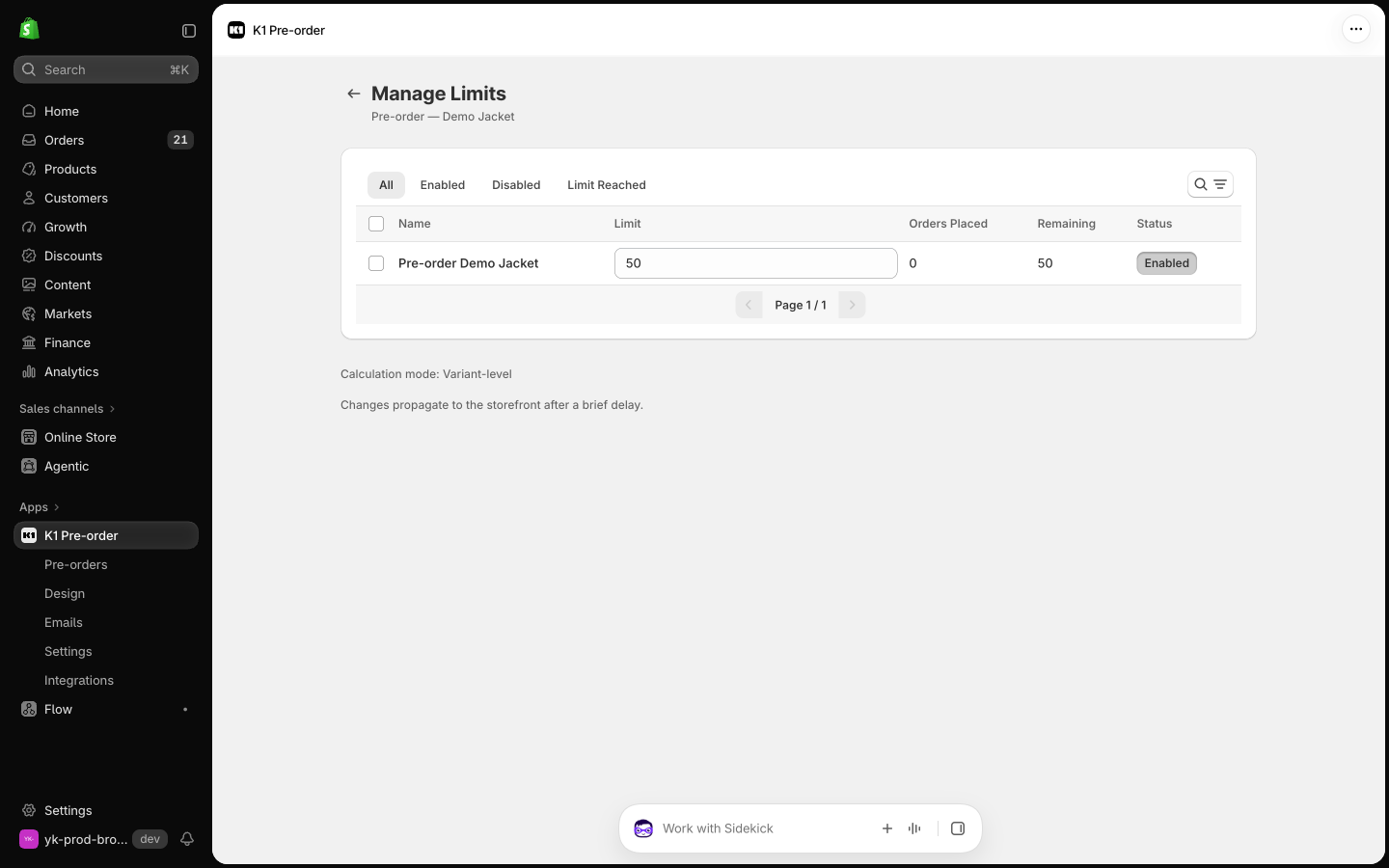
K1 demo: limit 50, orders placed 0, remaining 50.
Review the limit whenever:
- the supplier changes the confirmed quantity;
- the expected arrival date moves;
- cancellation volume changes;
- a wholesale or retail commitment is added;
- the sales mix shifts between variants;
- a restock changes the inventory state or resets the counter.
After receiving stock, review the configured limit, recorded quantity, and remaining capacity against outstanding customer commitments.
If confidence falls, reduce the remaining capacity or deactivate the rule. It is better to reopen later than to accept orders you cannot fulfill.
5. Decide Between Full Payment and a Deposit
Payment terms should match the product price, the length of the wait, and your confidence in fulfillment.
| Payment model | Works well when | Main consideration |
|---|---|---|
| Full payment | The product is lower-risk and the delivery window is clear | The customer makes the largest upfront commitment |
| Percentage deposit | The product is expensive or has a longer lead time | The remaining balance must be collected later |
| Fixed deposit | Products have similar prices and a clear reservation amount | The deposit must remain valid for every covered price |
| Offline balance collection | The merchant uses a manual, B2B, transfer, or pickup workflow | The team owns follow-up and reconciliation |
Full payment is operationally simple: the customer pays at checkout, and the merchant fulfills later. It can also provide the strongest immediate cash flow. However, asking for the full amount may reduce conversion when the product is expensive or the delivery date is distant.
For a $40 product, the merchant could offer two choices: pay the full $40 at checkout, or pay a $10 deposit now with a $30 balance collected later. The full-payment option is simpler, while the deposit reduces the customer’s upfront commitment and creates a balance-collection step for the merchant.
A deposit lowers the initial commitment. The remaining balance can be scheduled for a specific date or a set number of days after the order, depending on the configuration. K1 PreOrder Now & Deposit supports percentage and fixed split payments, automatic balance charges using a supported saved payment method, and offline balance collection. Automatic collection follows the configured schedule, not a shipping trigger.
Whichever model you choose, validate the setup carefully:
- the deposit must be lower than the product price;
- a fixed deposit must make sense for every covered variant;
- an automatic balance charge needs a defined schedule;
- the payment-option names should clearly explain the choice;
- Shopify purchase-option and deferred-payment compatibility depends on the store’s payment gateway and setup.
Do not let payment timing become disconnected from fulfillment reality. If the supplier date is uncertain, charging the full balance too early can increase refund requests and support pressure.
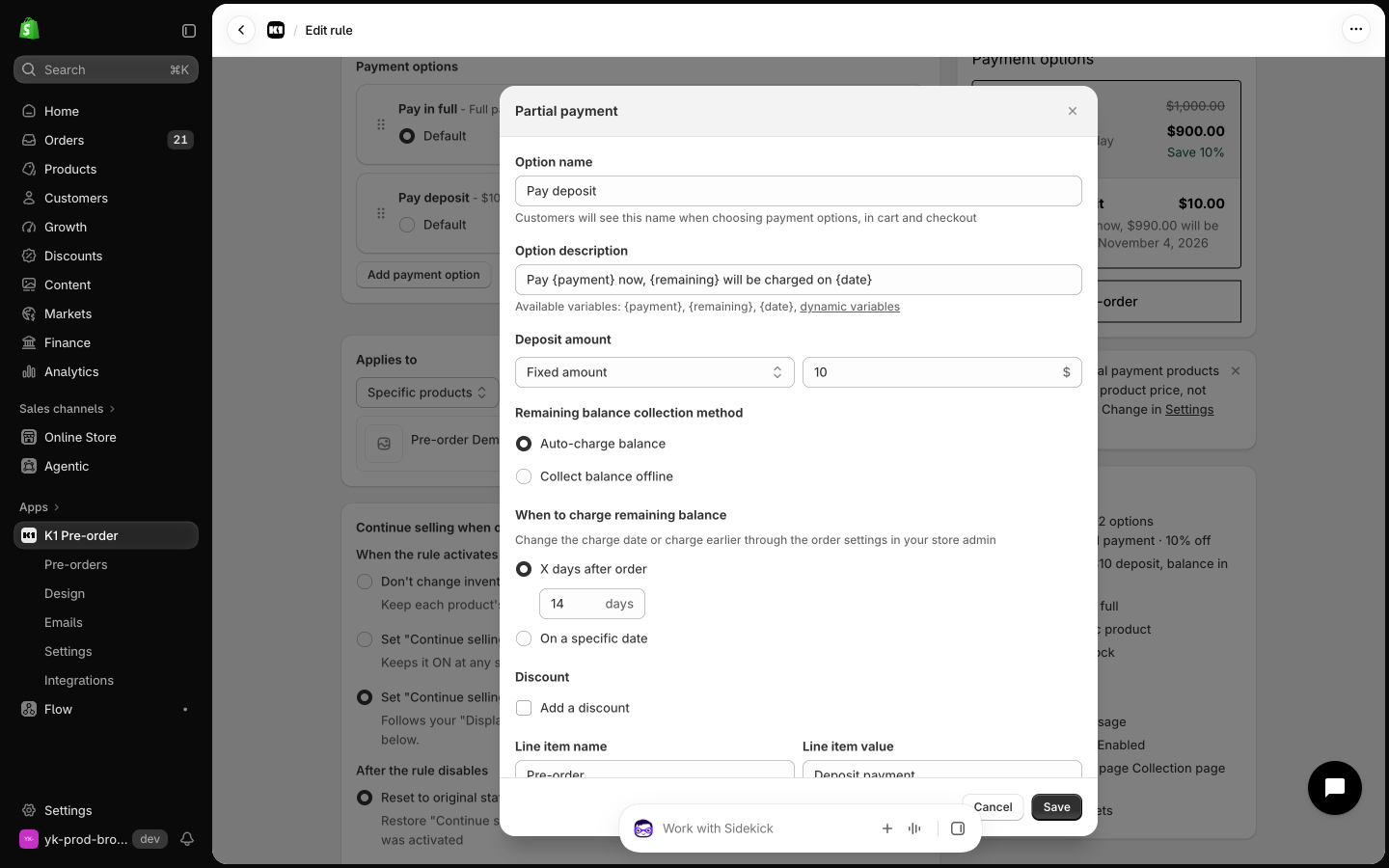
K1 demo: a fixed $10 deposit and balance scheduled 14 days after the order. Configuration does not verify a completed deposit or future charge.
6. Set Clear Delivery and Payment Expectations
Customers should understand three things before checkout:
- What is charged today?
- What amount remains, and when will it be collected?
- When is the order expected to ship?
Show this information close to the purchase decision, not only in a policy page or confirmation email.
A useful product-page message might be:
Pay $10 today to reserve your $40 item. The remaining $30 is scheduled 14 days after your order. Estimated shipping: 3–4 weeks after your order.
The payment and shipping timing above is illustrative. Use dates that reflect your actual payment settings and confirmed delivery plan.
Use “estimated” when timing can still change. A supplier arrival date is not the same as a customer delivery date. Receiving, quality checks, warehouse processing, and carrier transit all add time.
K1 PreOrder Now & Deposit can display pre-order button text, badges, messages, and payment choices on the storefront. Payment-option descriptions and line-item properties can carry the selected terms into the cart and order. Dynamic values can include the payment amount, remaining balance, charge date, remaining pre-order limit, and selected product metafields.
Keep the same promise across the product page, cart, confirmation email, customer account, and support responses. Conflicting dates are one of the fastest ways to create avoidable tickets and cancellations.
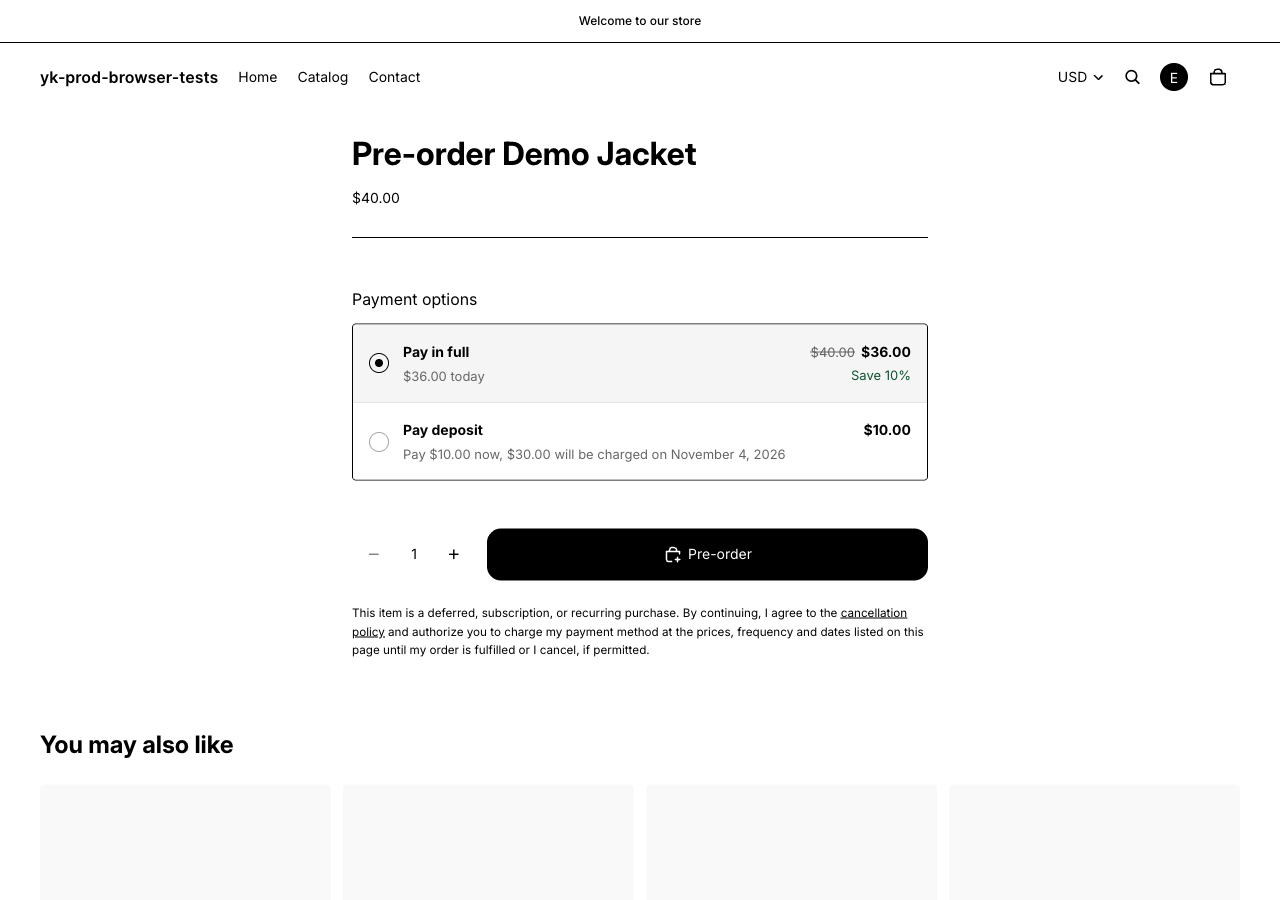
K1 storefront demo: a $40 product with a $10 deposit and the $30 balance scheduled 14 days after the order. The displayed charge date is illustrative; a live store shows the configured balance charge date.
7. Consider Adding a Discount for Pre-Orders
A discount can give customers a clear reason to choose full payment instead of a deposit. The merchant still offers flexibility, but receives more cash upfront from buyers who prefer the incentive.
For the same $40 product, the options could be:
- Pay in full: pay $36 now after a 10% pre-order discount.
- Pay a deposit: pay $10 now and the remaining $30 later, without a discount.
K1 PreOrder Now & Deposit supports optional percentage or fixed discounts on payment options. This lets the merchant reward full payment while keeping the deposit option available at the regular total price. Before publishing, confirm that the discounted price, deposit amount, remaining balance, and discount-combination settings behave as intended in the cart and checkout.
The storefront example shows the corresponding amounts: $36 paid in full, or $10 now plus $30 later. The captured screen is from a prior test and does not verify a deposit purchase or future balance charge.
8. Review the Pre-Order Launch Checklist
Before activating the rule, confirm that you have:
- Forecast the stockout window.
- Confirmed incoming quantity and supplier timing.
- Chosen the exact products and variants.
- Selected the correct display condition.
- Calculated a conservative pre-order limit.
- Reconciled the configured limit, recorded quantity, and remaining capacity.
- Tested what happens to the limit when inventory becomes positive.
- Chosen full payment, deposit, and optional discount terms.
- Published clear payment and shipping expectations.
- Completed one full-payment and one deposit test purchase.
- Cancelled a test order and checked the resulting counter and available capacity; a released counter does not itself confirm physical supply.
- Checked the storefront, cart, checkout, order record, and customer communications.
- Assigned an owner for monitoring and customer updates.
- Prepared delay, cancellation, and failed-payment communications.
If the store uses Shopify selling-plan-backed purchase options, check the current Shopify compatibility requirements. Payment gateways and some storefront or checkout configurations can affect availability, so test the exact payment path customers will use.
9. Monitor Forecasts and Pre-Order Commitments Together
Once the rule becomes active, pre-orders become part of the inventory plan. Do not monitor them separately from the replenishment forecast.
Track at least:
- remaining pre-order capacity and confirmed supply for each variant;
- units ordered and cancelled;
- updated sales velocity;
- confirmed incoming quantity;
- supplier and warehouse arrival dates;
- deposits collected and balances outstanding;
- failed or overdue balance charges;
- customer questions and cancellation reasons.
High-velocity products may need daily review. Compare committed pre-orders with confirmed incoming units and keep the safety buffer visible. If supply confidence declines, reduce the limit, pause the rule, and update storefront messaging before accepting more orders.
K1 PreOrder Now & Deposit’s management area tracks products, quantities, payment configuration, amounts, schedules, statuses, customers, and lifecycle events. Shopify Flow can also support selected notifications and payment workflows where available.
When a delivery window changes, update the product-page message first and then contact affected customers. Give them the new estimate and explain their options under the store’s cancellation and refund policy. Early, direct communication is usually less costly than waiting for customers to ask.
10. Avoid Common Pre-Order Mistakes
Accepting unlimited orders against uncertain supply
Control: Base the limit on confirmed supply and maintain a safety buffer.
Using one limit for variants with different availability
Control: Review supply at variant level. Do not treat units of different sizes or colors as interchangeable.
Choosing a deposit that does not fit every product price
Control: Validate fixed deposits against the lowest-priced covered variant or use a percentage.
Promising the supplier arrival date as the customer delivery date
Control: Add receiving, processing, and carrier time, then describe the result as an estimate.
Charging the remaining balance without a clear schedule
Control: Display the balance amount and charge timing before checkout and repeat it after purchase.
Treating forecast demand as confirmed inventory
Control: Use demand forecasts to estimate opportunity, but use confirmed incoming supply to determine capacity.
Forgetting mixed payment-term behavior
Control: Test carts containing products with different deferred-payment dates. Shopify can apply order-level rules when multiple due dates are present.
Connect Forecasting With a Controlled Pre-Order Rule
Inventory forecasting tells you when a stockout is likely to begin. A pre-order rule determines how much demand the business can safely accept during the gap.
The strongest workflow connects the two products: use Forthcast to review forecast demand, reorder alerts, supplier quantities, arrival dates, and draft purchase orders; then use K1 PreOrder Now & Deposit to select the products, set a conservative limit, offer full-payment or deposit terms, and communicate the delivery window clearly. This is a coordinated merchant workflow, not a claim of an automatic integration between the two apps.
Start with one product group and monitor it closely. Once the process works—from forecast and purchasing in Forthcast to pre-order collection and tracking in K1 PreOrder Now & Deposit—you can reuse the same structure for future launches, seasonal spikes, and supplier delays.